
Product
May 26, 2026 · 5 min read
How to Check Your OpenWeb Ninja API Quota Usage Programmatically
A small new endpoint that returns your plan, billing period, and remaining quota for any of your OpenWeb Ninja APIs. Useful for in-app dashboards, alerts, and safety checks before you hit a hard cap.

Adam Ben-Ayoun
CTO, OpenWeb Ninja
API · Quota · Developer Tools
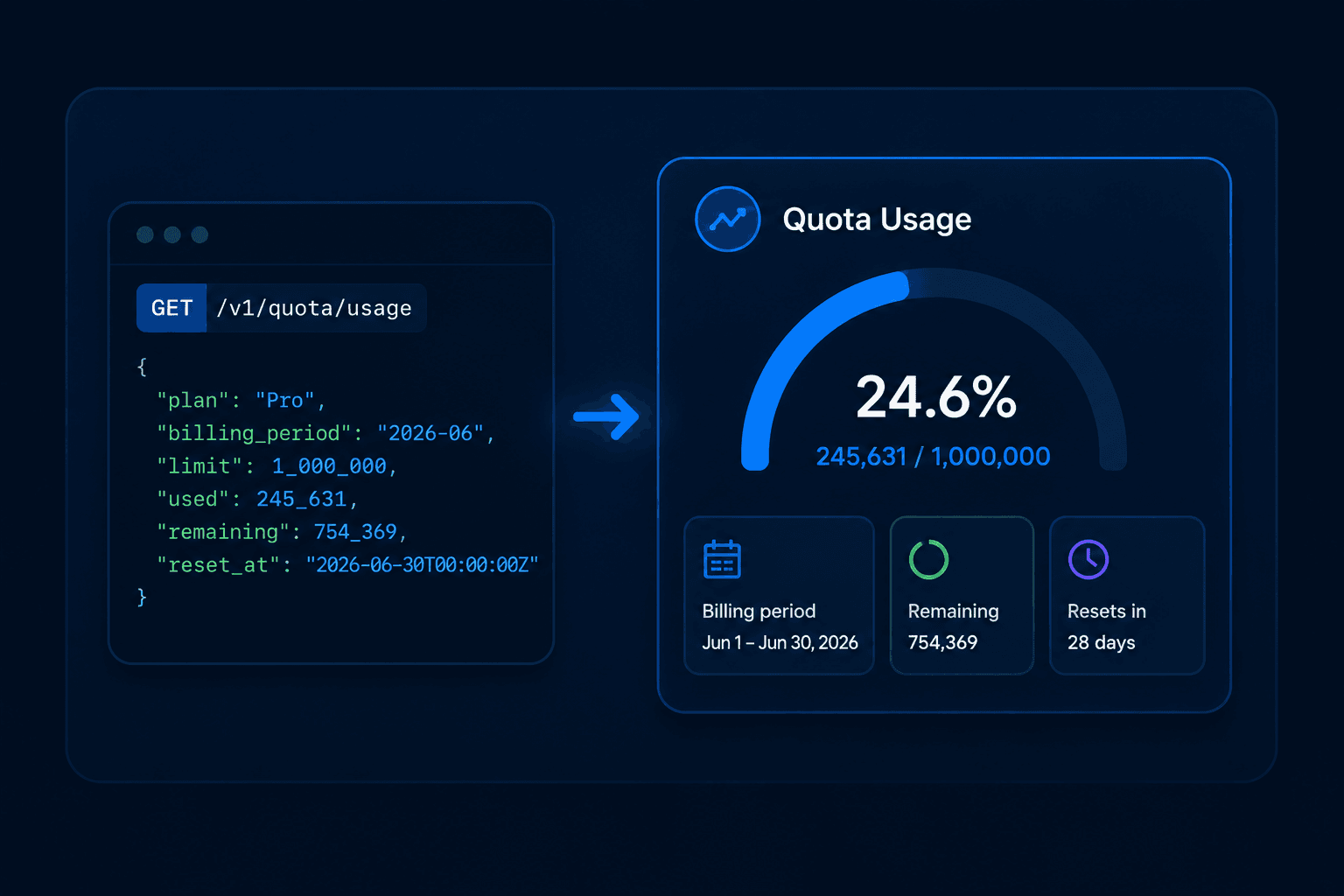
The OpenWeb Ninja portal at app.openwebninja.com already shows your plan, current usage, and renewal date in a dashboard. That works when you log in. It does not work when you want to read your own quota from a script, gate a user action before a request, or page someone if you cross 90% of your monthly limit.
We added a small endpoint for that. One GET, your existing API key, JSON back.
What the endpoint returns
For the API you ask about, the response includes:
Plan
Plan id, key, nickname, and a flag for free vs paid.
Status
active, past_due, trialing, canceled, exceeded, or inactive.
Billing period
period_start and period_end in ISO 8601 UTC.
Term
Billing cadence (e.g. month, year).
Quota usage
limit, used, and remaining for the current period.
Reset time
When the quota resets (reset_at, ISO 8601).
Authentication
Pass your OpenWeb Ninja API key as the x-api-key header. Same key you already use to call our APIs. You can find it (and a copy-pasteable curl snippet) in the portal under Account → Settings.
Quick start with curl
One required query parameter: api_id. The slug is what appears in the API's URL (i.e., https://api.openwebninja.com/<api_id>), for example local_business_data, jsearch, or realtime_amazon_data.
# check usage for the Local Business Data API
curl -H "x-api-key: YOUR_API_KEY" \
"https://api.openwebninja.com/usage?api_id=local_business_data"
Response:
{
"status": "OK",
"request_id": "c1f2e9...",
"data": {
"api_id": "local_business_data",
"plan": {
"id": "price_1Ozx...",
"key": "pro",
"nickname": "Pro",
"is_free": false
},
"status": "active",
"term": "month",
"period_start": "2026-05-01T00:00:00Z",
"period_end": "2026-06-01T00:00:00Z",
"quotas": [
{
"name": "Businesses",
"limit": 20000,
"used": 7480,
"remaining": 12520,
"reset_at": "2026-06-01T00:00:00Z"
}
]
}
}
A few notes about the response. The payload sits inside a data envelope alongside status and request_id. data.status is active while you have remaining quota, and flips to exceeded when you cross a hard limit. quotas[].name reflects what each unit actually represents - "Requests" for most APIs, "Businesses" for the Local Business Data API, "Credits" for Local Rank Tracker.
Python
A small wrapper that returns a remaining-quota percentage for a given API. Useful as a building block for alerts and gating.
# quota.py
import os
import requests
API_KEY = os.environ["OWN_API_KEY"]
USAGE_URL = "https://api.openwebninja.com/usage"
def remaining_pct(api_id):
r = requests.get(
USAGE_URL,
headers={"x-api-key": API_KEY},
params={"api_id": api_id},
timeout=10,
)
r.raise_for_status()
body = r.json()["data"]
quota = body["quotas"][0]
return quota["remaining"] / quota["limit"]
if remaining_pct("local_business_data") < 0.10:
print("Warning: under 10% remaining on Local Business Data API")
Node.js
Same logic, no dependencies beyond the built-in fetch (Node 18+).
// quota.mjs
const API_KEY = process.env.OWN_API_KEY;
const USAGE_URL = "https://api.openwebninja.com/usage";
async function remainingPct(apiId) {
const res = await fetch(
`${USAGE_URL}?api_id=${apiId}`,
{ headers: { "x-api-key": API_KEY } }
);
if (!res.ok) throw new Error(`usage ${res.status}`);
const { data } = await res.json();
const quota = data.quotas[0];
return quota.remaining / quota.limit;
}
const pct = await remainingPct("jsearch");
if (pct < 0.10) console.warn("Under 10% remaining on JSearch");
A few patterns this unlocks
In-app quota dashboards
Show your own users how much of their (your) quota they've consumed this month. One call per API, no scraping the portal.
Pre-flight gating
Before kicking off a 5,000-request batch, check remaining and bail or fall back to a lower-volume path if you're close to the cap.
Threshold alerts
Cron the endpoint every hour for each API you use, post to Slack / PagerDuty when remaining drops below 10%. Stops surprise overage.
Staging vs prod checks
Run against a staging API key in CI to confirm a deploy did not start burning quota faster than expected.
Customer-facing billing UI
If you resell OpenWeb Ninja access (managed dashboard, agency client, etc), show plan + period + remaining without screen-scraping the portal.
Quota-aware retries
On a 429, read status and reset_at to decide whether to back off or notify someone immediately.
Where to find your API key (and the api_id values)
Log in to app.openwebninja.com and go to Account → Settings. The API Key card has your key and a Copy button. Below it, the Check API Usage Programmatically card shows a copy-pasteable curl snippet pre-filled with your key.
The api_id is what appears in the API's URL (i.e., https://api.openwebninja.com/<api_id>). For example, local_business_data for the Local Business Data API, jsearch for JSearch, realtime_amazon_data for the Real-Time Amazon Data API.

Written by
Adam Ben-Ayoun
CTO at OpenWeb Ninja
Adam leads engineering at OpenWeb Ninja, building the APIs and infrastructure that make public web data accessible to developers and AI agents.
Connect on LinkedInDon't have an OpenWeb Ninja key yet?
Every API has a free tier. No credit card required. Once you have a key, the /usage endpoint works out of the box.